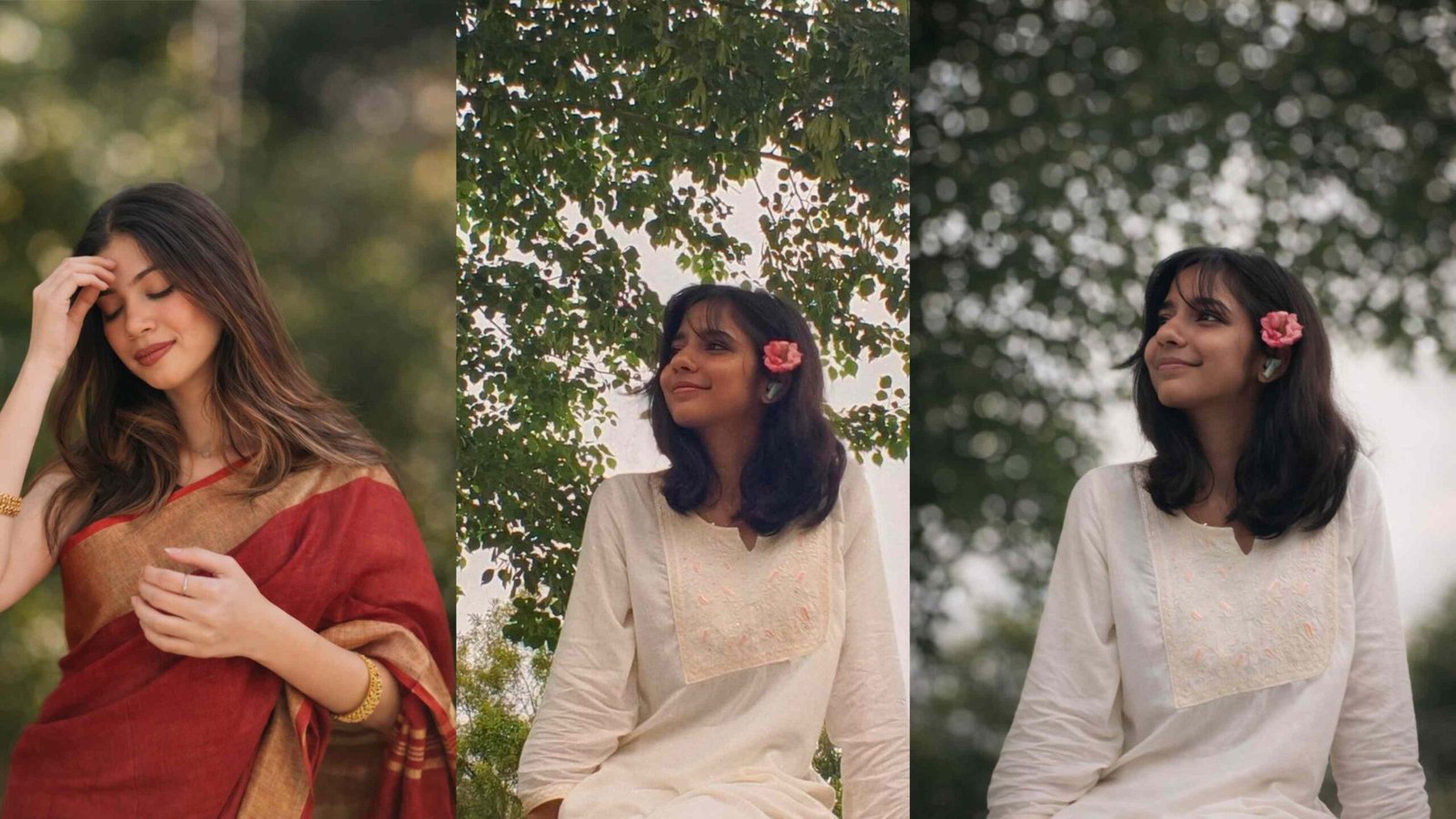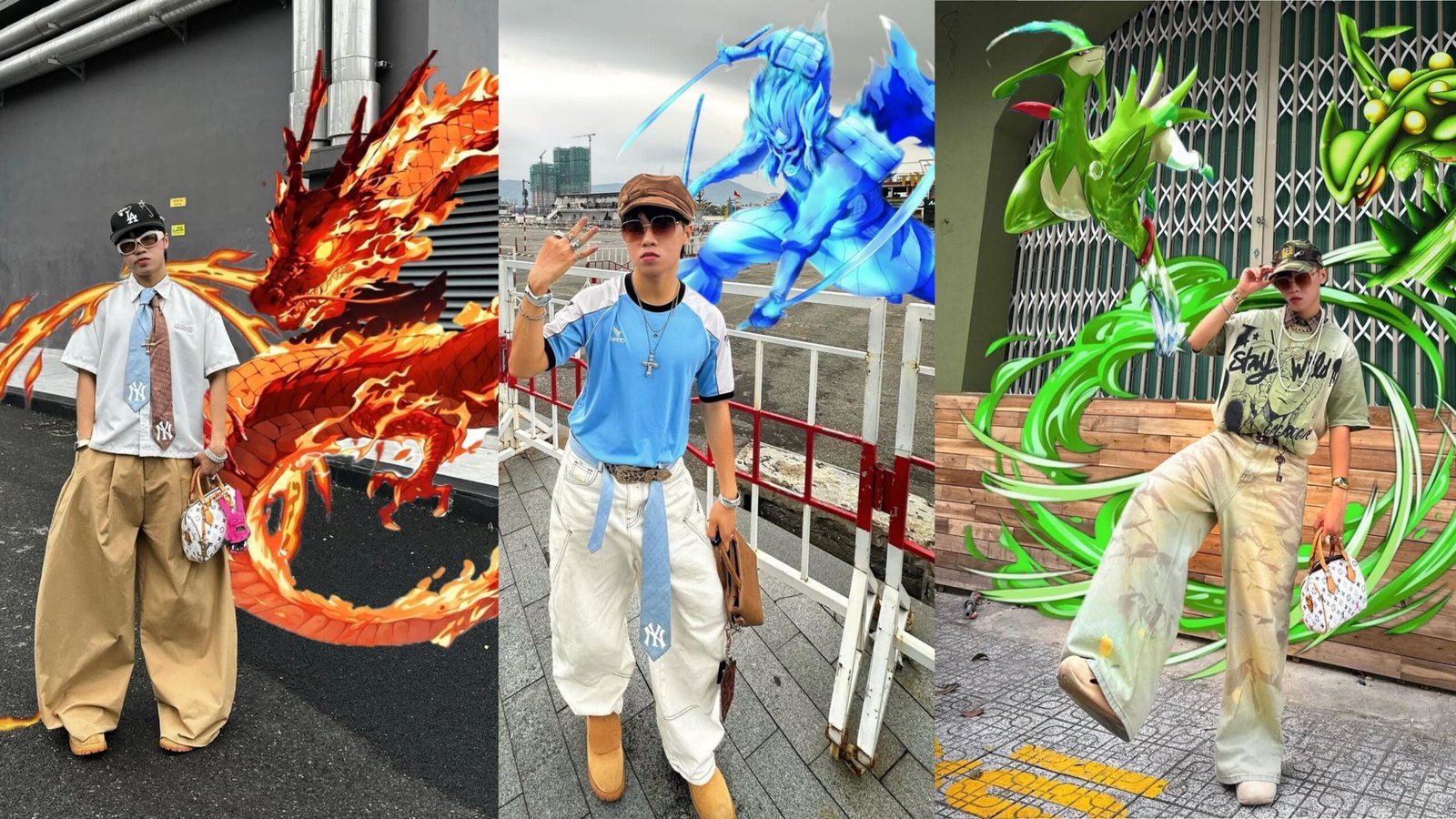
Introduction
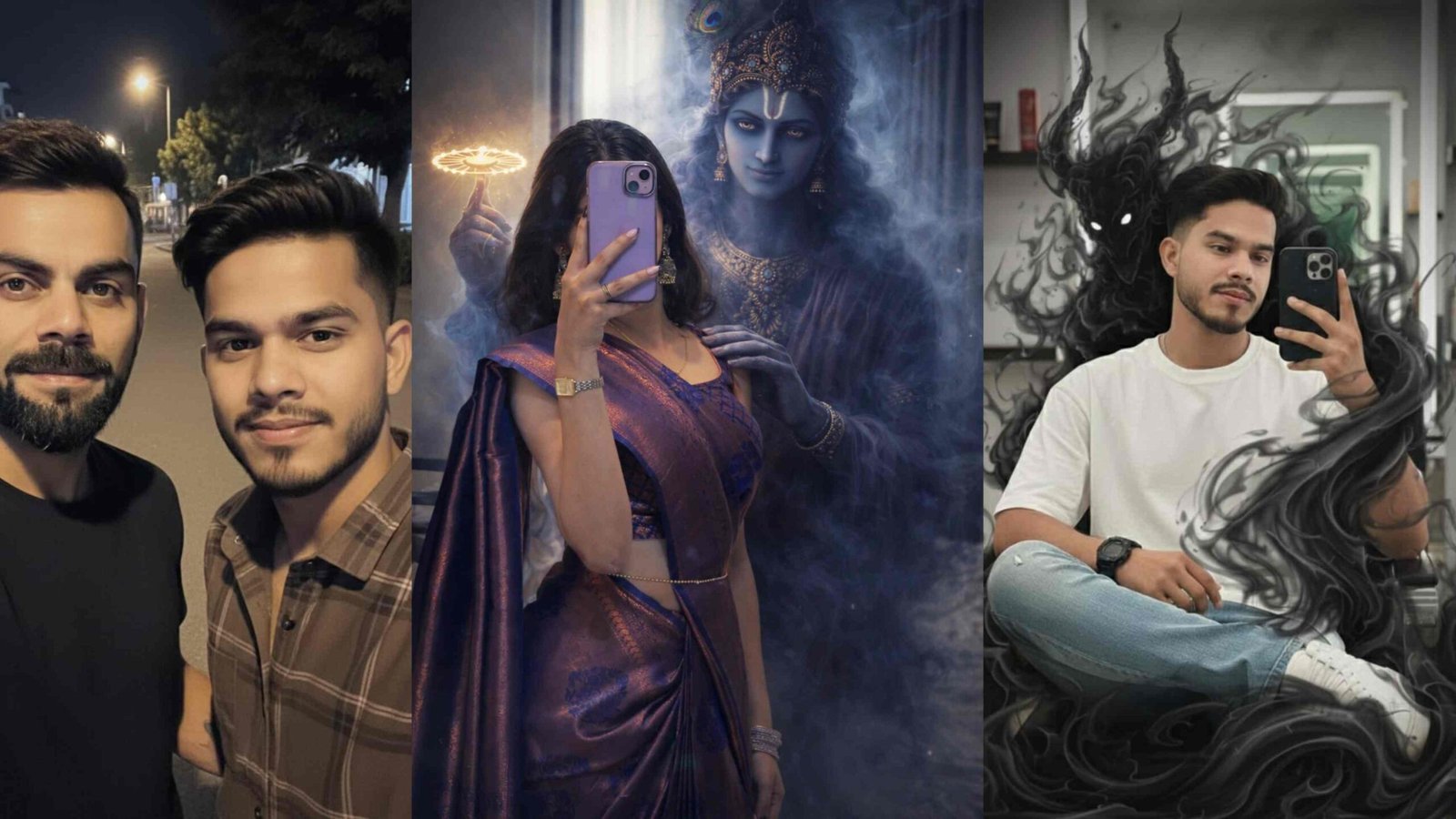
Anime-inspired photo edits are trending everywhere on Instagram, especially effects like Sasuke’s Susanoo and Kakashi’s lightning aura. These edits look powerful, dramatic, and eye-catching, and the best part is—you can create them easily using the PicsArt app. This guide explains step by step how to create a perfect Sasuke Susanoo Kakashi effect photo edit using PicsArt.
Introduction to the Sasuke Susanoo Kakashi Effect
The Sasuke Susanoo effect is one of the coolest visuals from Naruto, where a glowing aura surrounds the fighter. Combined with Kakashi’s lightning effect, the result becomes cinematic and energetic. In photo editing, this effect includes glowing auras, lightning strokes, energy particles, and dramatic color grading.
What You Need Before Starting
- PicsArt App (latest version)
- Your main photo (preferably full or half body)
- Susanoo aura PNG overlays
- Lightning PNG overlays
- Particle or smoke overlays
- Dark anime-style background (optional)
Step-by-Step Editing Tutorial in PicsArt

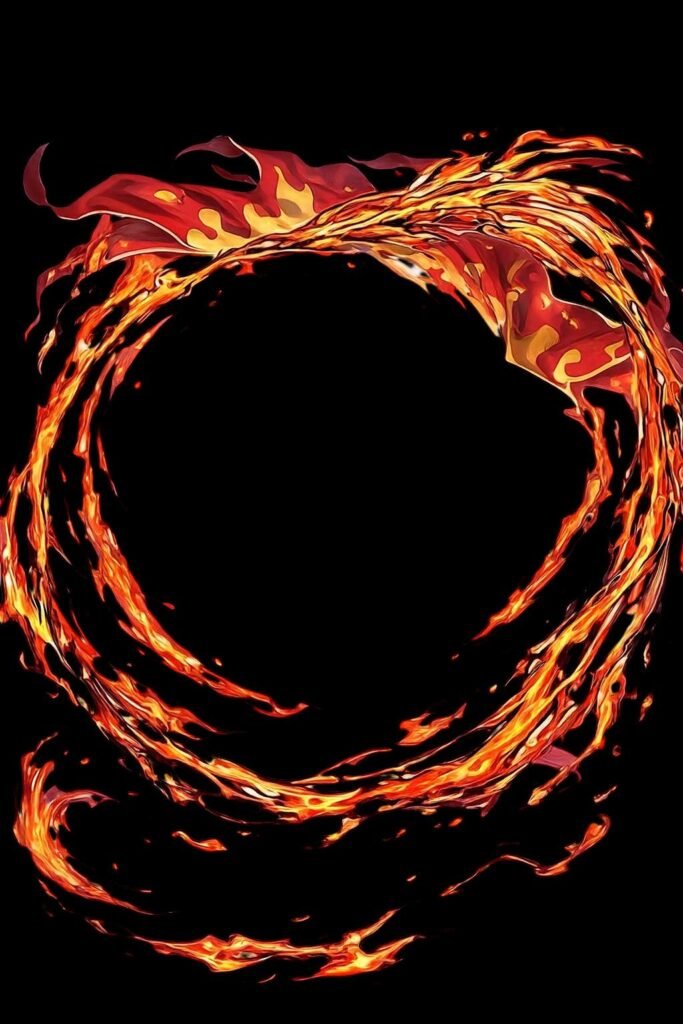
Step 1: Import Your Image
Open PicsArt and upload your photo. Crop and slightly sharpen the image for a cleaner anime look.
Step 2: Remove the Background
Use Tools → Cutout to remove your background if needed. Clean the edges and save your cutout.
Step 3: Add the Susanoo Aura
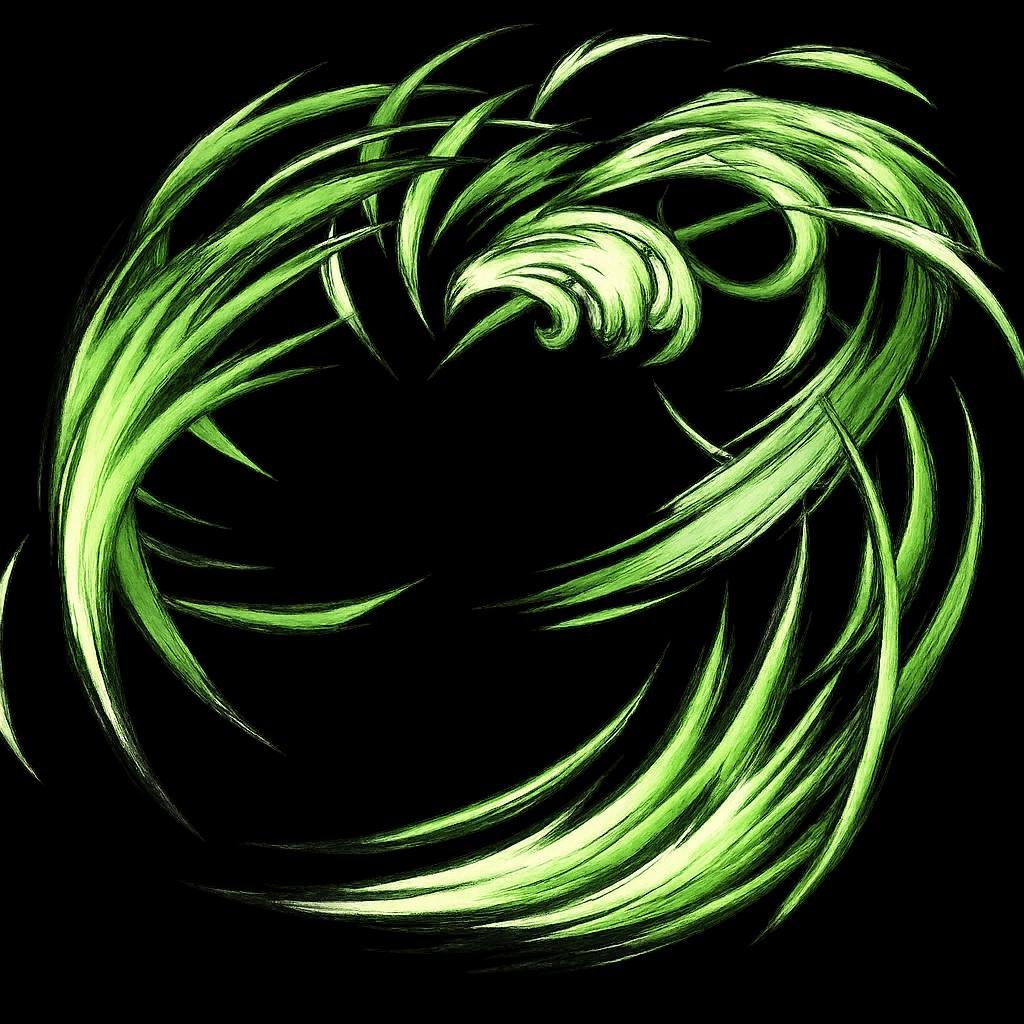
Add a Susanoo PNG using Add Photo. Change blend mode to Screen or Lighten and adjust the size so it surrounds your body. Erase any extra overlay around the face.
Step 4: Add Kakashi Lightning Effect
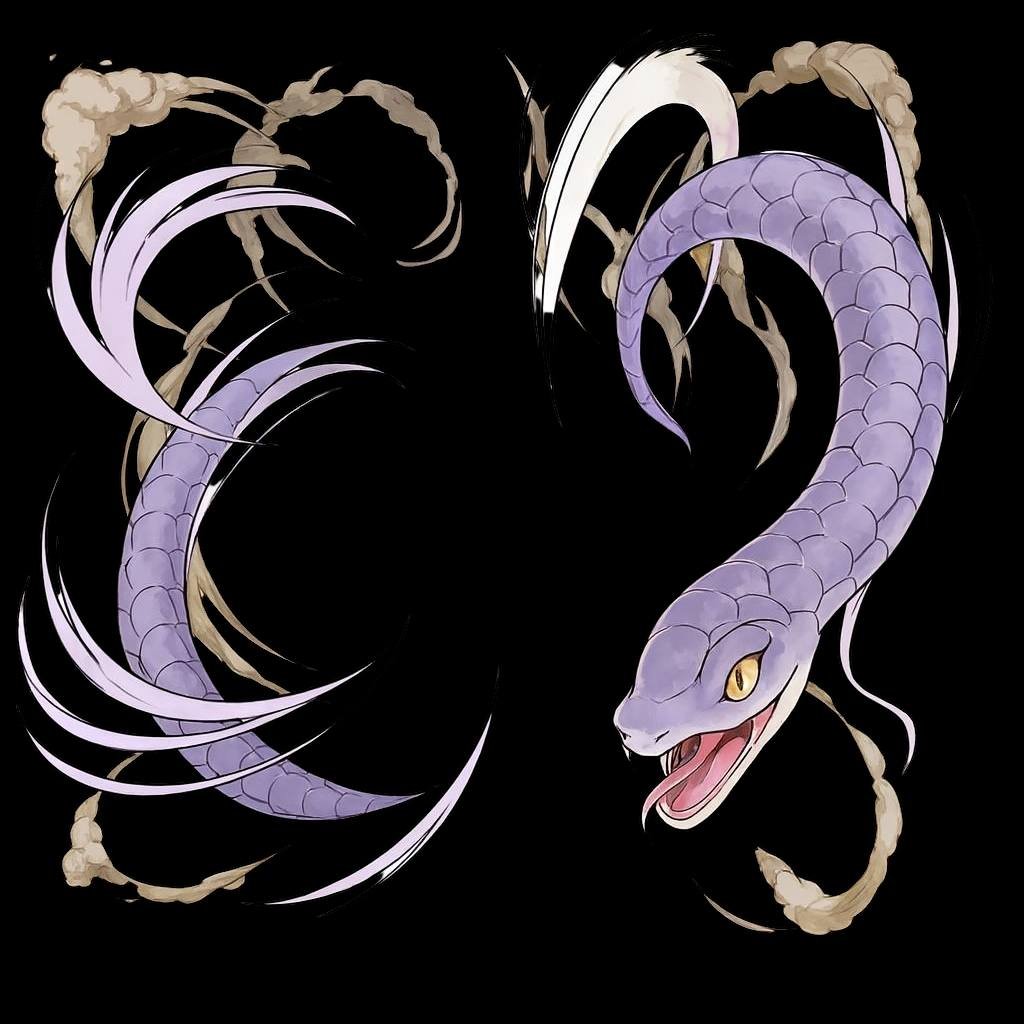
Add lightning PNGs and place them near your hands. Use blend mode Screen and duplicate lightning for stronger energy vibes.
Step 5: Add Particles and Smoke
Search in Stickers for “energy”, “blue smoke”, or “anime glow.” Place them around the hands, body, and background to add depth. Reduce opacity and apply slight Gaussian blur.
Step 6: Apply Color Grading
Go to Adjust and apply these settings:
- Contrast: +20
- Sharpen: +15
- Saturation: +10
- Temperature: -5
- Shadows: -15
Use Colorize for a blue or purple tone with low opacity.
Step 7: Add Background
If you removed your original background, add an anime-style dark background using Add Photo. Apply slight blur for depth.
Step 8: Create Glow Effect
Use the Draw Tool with a soft brush. Choose blue or purple and paint lightly around your body. Reduce opacity to 25–35% for a soft glow.
Step 9: Final Touches
Finish your edit with vignette, HDR, and lens flare. Export in high quality for best results.
Tips to Make Your Reel Viral
- Use trending anime music
- Keep the reel short (4–7 seconds)
- Add smooth zoom and shake effects
- Use captions like “Anime Power Edit | Sasuke x Kakashi Effect”
- Add hashtags like #animeedit #picsartediting #narutoedit
Conclusion
The Sasuke Susanoo Kakashi effect can be created easily in PicsArt with the right overlays and adjustments. By following this tutorial, you can turn any normal photo into an intense anime-style power edit that looks perfect for reels and Instagram posts. With practice, you’ll create even more advanced anime power effects.